Post-order checkout flow and how your customers get access to your private channels or groups will depend on the settings made during plugin setup. By default, your customers will be provided with the channel and group invite links. If you enabled the Require Activation Step on the settings page, then your customers will first activate their subscription before getting their invites. The support document Additional Plugin Settings describes the setting in more details.
⚠️ The activation step is being deprecated. Direct invite links are now the recommended default flow, and the activation step is hidden on new installs. The “Optional Checkout Flow” described below is kept for existing users who still rely on it — new setups should use direct invite links.
Checkout / Order Received Page #
After a successful checkout, your customer typically lands on the order received page. If you’re using a payment gateway such as Stripe or WooCommerce Payments that process payments in real-time, and the payment is successful, your customer will find the relevant invite links or activation instructions on the order received page. For offline payment options (bank transfers, checks, etc), where it takes time to confirm payment receipt, a message advising them they will receive further details when their payment clears.
Default Checkout Flow #
With the default checkout flow, ie Require Activation Step is disabled, customers will be shown their invite link(s) on the order received page in the Telegram Access section following a successful checkout and completed payment. The invite links are also emailed to the customer.
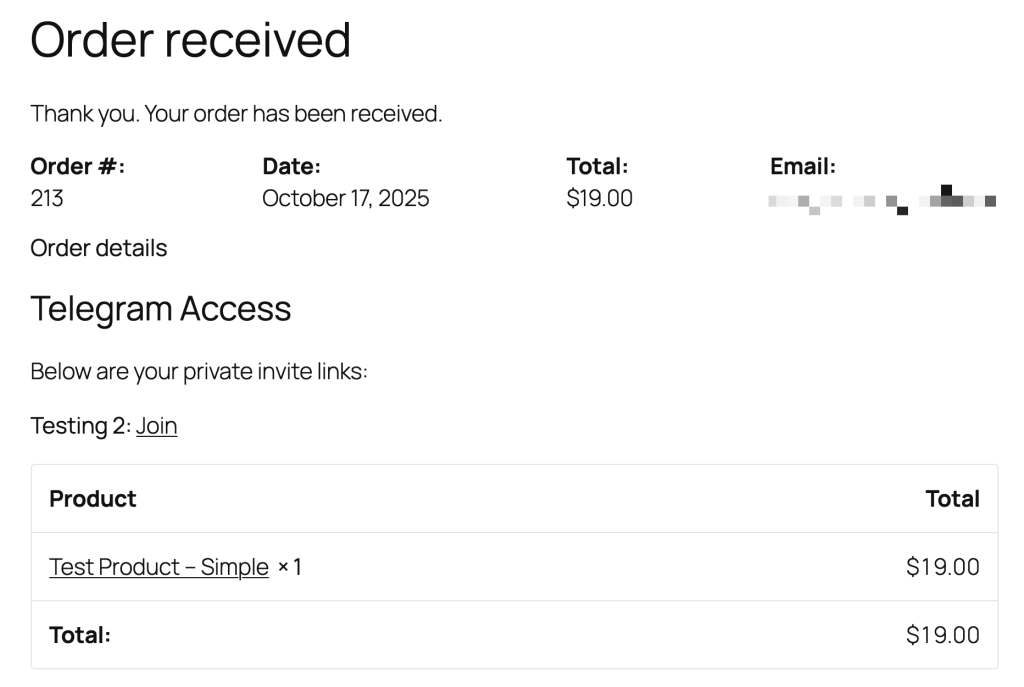
Your customer will need to click on the invite link(s) to initiate a join request to the group or channel. If there are multiple links, they must click on each link to get access to all the channels or groups.
The join request will be automatically approved by the Subscriber Manager for Telegram plugin as long as the order is valid. If the customer tries to use the link after the subscription period ends, it will not be approved. Invite links are also one-time use. The plugin will revoke the link immediately after the join request is approved.
Lost or expired link? With Subscriber Manager Pro, you can re-send a customer their invite from the store admin — either re-email the existing link, or issue a brand-new one — without them re-purchasing. See Managing Your Subscribers.
Optional Checkout Flow (activation step — being deprecated) #
This flow is being phased out and is hidden on new installs. It continues to work for existing users, but we recommend the default direct-invite flow above.
The optional checkout flow, ie when the Require Activation Step is enabled, will require customers to first activate their user account before being provided with invite links. Further details on why and when you might want to use this option is covered in the plugin setup section of these support documents.
Similar to the default checkout flow described above, when a user completes the checkout process they typically land on the default WooCommerce “Thank you” page, internally known as the order received page. Instead of invite links, there is a section called Activation Code.
In this section there is an activate code, and a link (Start Chat) to your Telegram bot where your customers will activate their subscription. This link and code is also sent via email.

In most cases, the activation code will not be required as the Start Chat url deep links to the activation command and includes the activation code. In this case, the customer will see a success message, along with the invite link(s) to each channel or group associated with the order. The invite links are also sent via email to the customer.
In cases where the activation does not automatically occur, customers can use the the command /activate followed by the activation code to trigger the generation of the invite links.
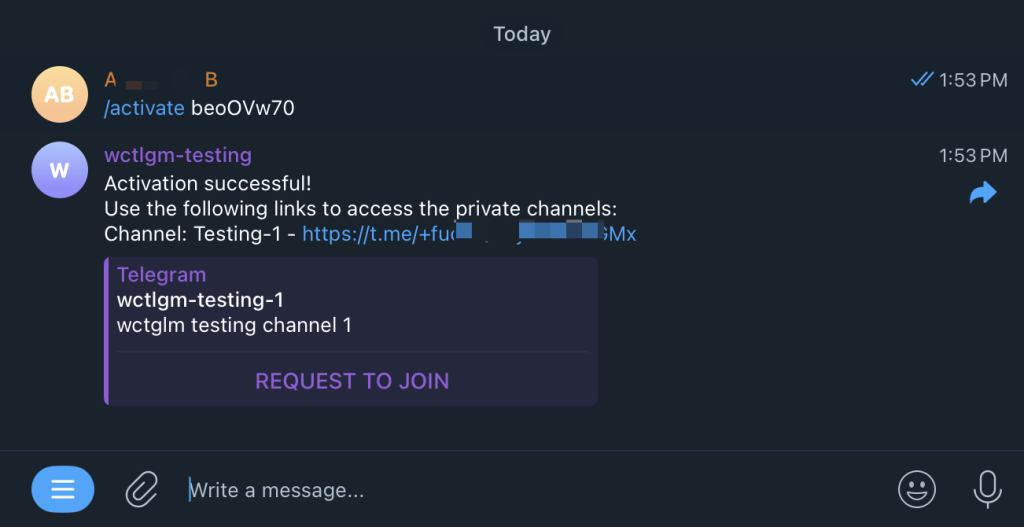
Note: The activation code cannot be re-used by the customer or anyone else following a successful activation.
Offline Payment Methods #
The previous steps assumed a real-time payment method where payment is received almost instantly (via credit card), making it possible to show the invite links or activation code on the order received page. In contrast, offline payment methods such as bank transfers or checks take time to clear or require manual intervention. For these payment methods, the Subscriber Manager for Telegram plugin will not generate the invite links or the activation code until the order status is changed to “processed” or “completed” in the WooCommerce orders dashboard in wp-admin. As such, following checkout, the customer will see a message indicating they will receive the invite links or activation code by email, or they will be available in their My Account area.
Message with delayed payment method:
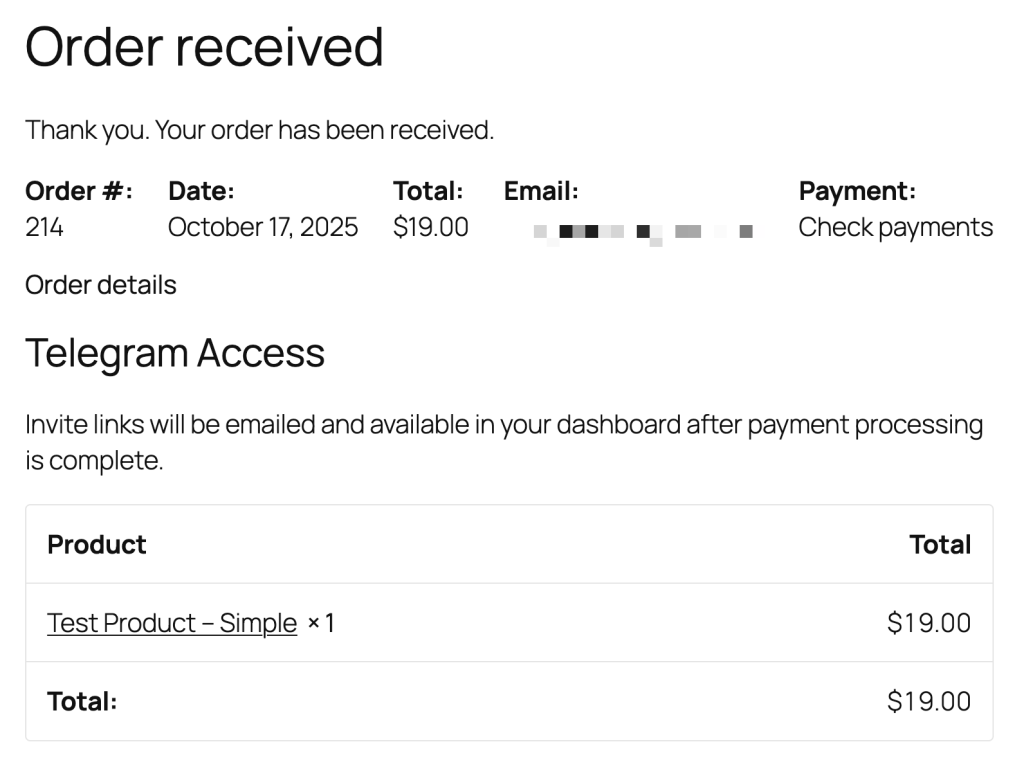
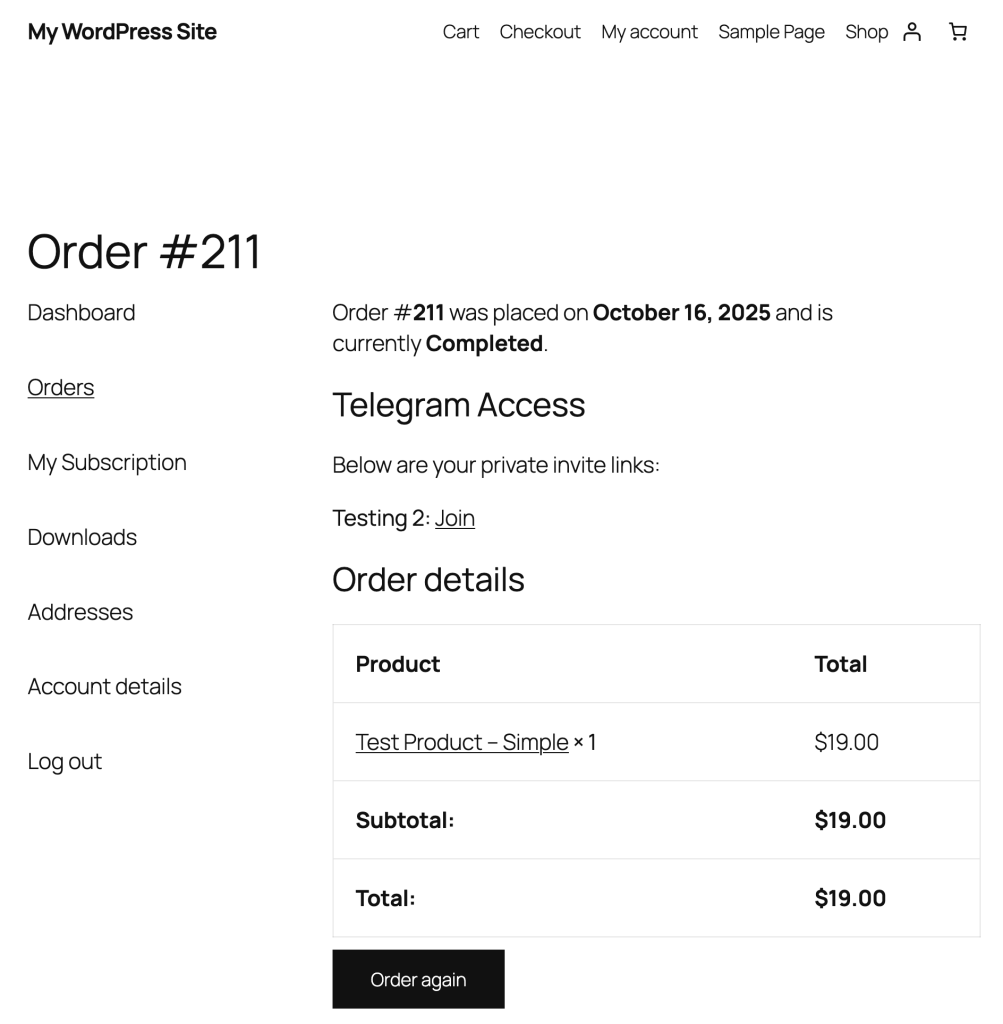
After you’ve received the payment, mark the order as processing or completed, and the plugin will generate the invite links or activation code. This will then become available in the customers My Account area under the order, and will also be emailed to them.
Tracking Subscriber Progress #
While your customers go through checkout and activation, you can track their progress in the Subscribers tab. Pending invites, successful joins, and membership changes all appear in the subscriber management table.


