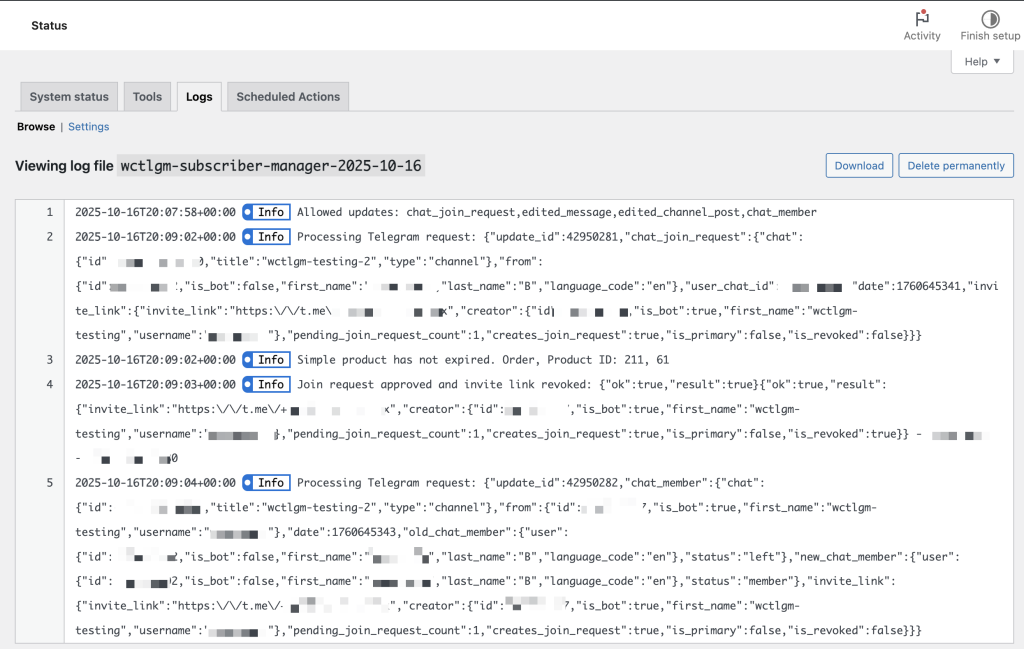
The Subscriber Manager for Telegram plugin includes built in logging using the WooCommerce logging class. You can find the logs in the WooCommerce status area of your WordPress site’s dashboard at WooCommerce > Status, then click on the Logs tab. If logging is enabled, and depending on the level threshold setting, you will see logs for the plugin under the name wctlgm-subscriber-manager or wctlgm-subscriber-manager-lite.

Logs will typically contain entires marked as “Info”. These are collected for information and can be used as an audit trail for any orders, users invited, approved, rejected, revoked orders, etc. Entries marked as “Warning” could indicate an issue where a response to a request or action was different than expected, and should be investigated or monitored to ensure they do not continue or affect your site in a meaningful way. Entries marked as “Error” usually indicate a serious issue and something isn’t working right. These should be investigated immediately and a resolution sought.
Subscriber Management Logs #
Admin actions from the subscriber management table are logged as Info entries. Look for entries such as:
- User removed from channel — An admin removed a subscriber via the detail modal.
- User banned from channel — An admin banned a subscriber.
- Invite revoked — An admin revoked a pending invite link.
- Database migration completed — The automatic data migration ran during the upgrade to v2.0.0.
In case any of the logs are confusing, or you are not able to resolve warnings errors, please contact us for support and we’ll help you to find the cause of the issue.


